

MTD Spreadsheet Instructions and Worked Example
Step-by-step instructions and a worked example to help you set up the MTD spreadsheet, record transactions, check your figures and prepare for quarterly updates.
Making Tax Digital for Income Tax requires you to keep digital records of your self-employment income and expenses and send summary updates to HMRC every three months for each business using compatible software. Your digital records must include the date, amount and category of each income or expense.
These instructions show you how to set up and use our free MTD spreadsheet template, enter transactions, check the quarterly and cumulative figures, reconcile your bank and prepare the totals needed for your quarterly updates.
If you have not downloaded the spreadsheet yet, start with our Free MTD Spreadsheet Template for Income Tax page. It explains who the template suits, how to use Excel with Making Tax Digital, and how bridging software connects the spreadsheet to HMRC.
Disclosure: This content may contain affiliate links, which means if you click on them, I may get a commission (without any extra cost to you).
Step 1: Enter Your Business Details
Start on the Instructions sheet.
Enter your business or personal name and the opening bank balance. The business name will then appear on each monthly worksheet.

If you already use the bank account for the business, enter the opening balance at the start of the first period you are recording. We recommend using a separate business bank account, as it makes it easier to keep business and personal transactions separate and reconcile your records.
This template uses HMRC’s standard update periods from 6 April to 5 April.
Step 2: Set Up Your Account Codes
Open the Account Codes sheet and check the income and expense categories.

You can change unused account names to suit your business. For example, you might use separate income accounts for sales and consultancy work.
Set these up before entering transactions.
Important: Once you have used an account name, do not rename it. Existing transactions may no longer match the account and could be left out of the totals.
Step 3: Enter Your Income and Expenses
The workbook has a separate worksheet for each period of the tax year.
For each transaction, enter:
- the date
- customer or supplier
- reference
- amount
- account category
HMRC digital records must include the amount, date, and category of each income or expense.
Choose the account from the drop-down list. The spreadsheet automatically places the amount in the correct income or expense column and updates the running bank balance.

Step 4: Check Your Monthly Figures
At the bottom of each worksheet, the spreadsheet calculates the totals for each income and expense category.
Before moving on, check that you have entered all transactions for the period and selected the correct account category for each one.
The Totals sheet brings all 12 periods together and shows your monthly figures, annual totals, quarter figures and cumulative MTD figures.
Step 5: Drawings and Disallowed Expenses
The spreadsheet includes separate columns for Drawings and Disallowed transactions.
Use Drawings when you take money from the business for personal use. Drawings reduce the bank balance but do not count as a business expense, so they do not reduce the profit shown in the spreadsheet.
Use Disallowed for costs paid from the business bank account that cannot be claimed as a business expense. HMRC does not require you to keep digital records of disallowable expenses, but if you record them, keep them separate from allowable business expenses.
For example, if part of a mobile phone bill relates to personal use, enter the business portion on one line using the appropriate expense category, then enter the personal portion on a separate line as Disallowed.
Both Drawings and Disallowed transactions reduce the running bank balance, but they are excluded from Total Expenditure and Profit/Loss.
The example below shows how Drawings and Disallowed transactions reduce the bank balance without changing the Profit/Loss figure.

Step 6: Understand the Quarterly Figures
The Quarter-only Figures show what happened during each individual three-month period.
The Cumulative MTD Figures show the totals from the start of the tax year up to the end of each quarterly update period.
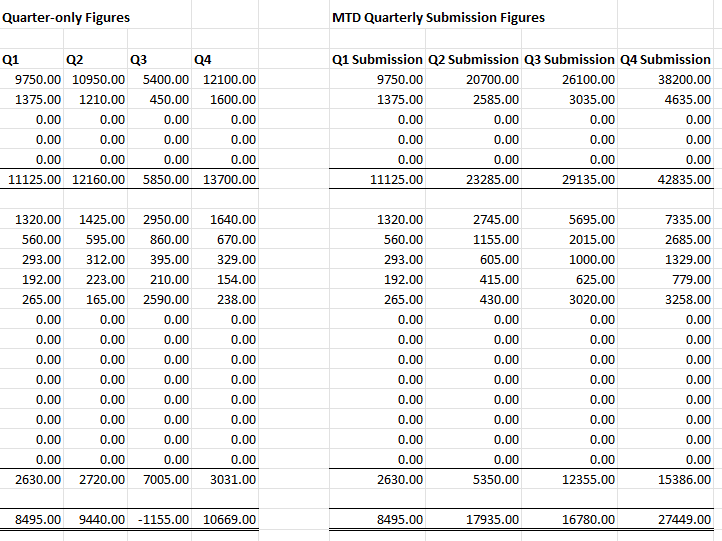
For example, in the worked example:
Q1 income: £11,125
Q2 quarter-only income: £12,160
Q2 cumulative income: £23,285
HMRC quarterly updates are cumulative. The second standard update covers 6 April to 5 October, rather than only the second three-month period.
Step 7: Reconcile Your Bank at the End of Each Quarter
Before using the quarterly figures, compare the spreadsheet closing balance with your bank statement.
If the balances do not agree, look for:
- missing transactions
- duplicated entries
- incorrect amounts
- transactions entered in the wrong period
- bank charges or interest that have not been entered
A bank reconciliation helps you check that the transactions in the spreadsheet are complete and that the closing balance agrees with your bank before you use the figures for the quarterly update.
Remember that Drawings and Disallowed transactions reduce the bank balance without reducing the business profit, so include these when checking why your spreadsheet balance has changed.
Step 8: Check the MTD Figures
The cumulative section of the Totals sheet shows the income and expense totals to check before submitting each quarterly update.
HMRC quarterly updates contain totals from your digital records and are summaries of income and expenses rather than tax returns.
The standard deadlines are:
Q1: 7 August
Q2: 7 November
Q3: 7 February
Q4: 7 May
Step 9: Submit Using Bridging Software
The spreadsheet does not send information directly to HMRC.
You will need compatible bridging software to connect your spreadsheet to HMRC and submit the quarterly update. See our Free MTD Spreadsheet Template for Income Tax page for more information about using bridging software with Excel.
Check the figures carefully before submitting and keep the spreadsheet as part of your bookkeeping records.
Worked Example
The worked example contains a full year of sample income and expenses.
It includes a loss in Q3, so you can see how an individual quarter can show a loss while the cumulative year-to-date figure remains a profit.
The completed example shows:
Total income: £42,835
Allowable expenses: £15,386
Profit: £27,449
Drawings: £7,050
Disallowed expenses: £455
Closing bank balance: £22,444
Use it alongside these instructions to see how transactions flow from the monthly worksheets through to the quarterly and annual totals.
Download the MTD Example Template
By downloading the free template, you agree to our licence agreement, allowing you to use the templates for your own personal or business use only. You may not share, distribute, or resell the templates to anyone else in any way.

For the blank template and our guide on the MTD template, including bridging software, visit the MTD Spreadsheet Template page.
Disclaimer: This information is for general guidance only and does not constitute tax advice. Check current HMRC guidance or seek professional advice if you are unsure how the rules apply to your circumstances.
